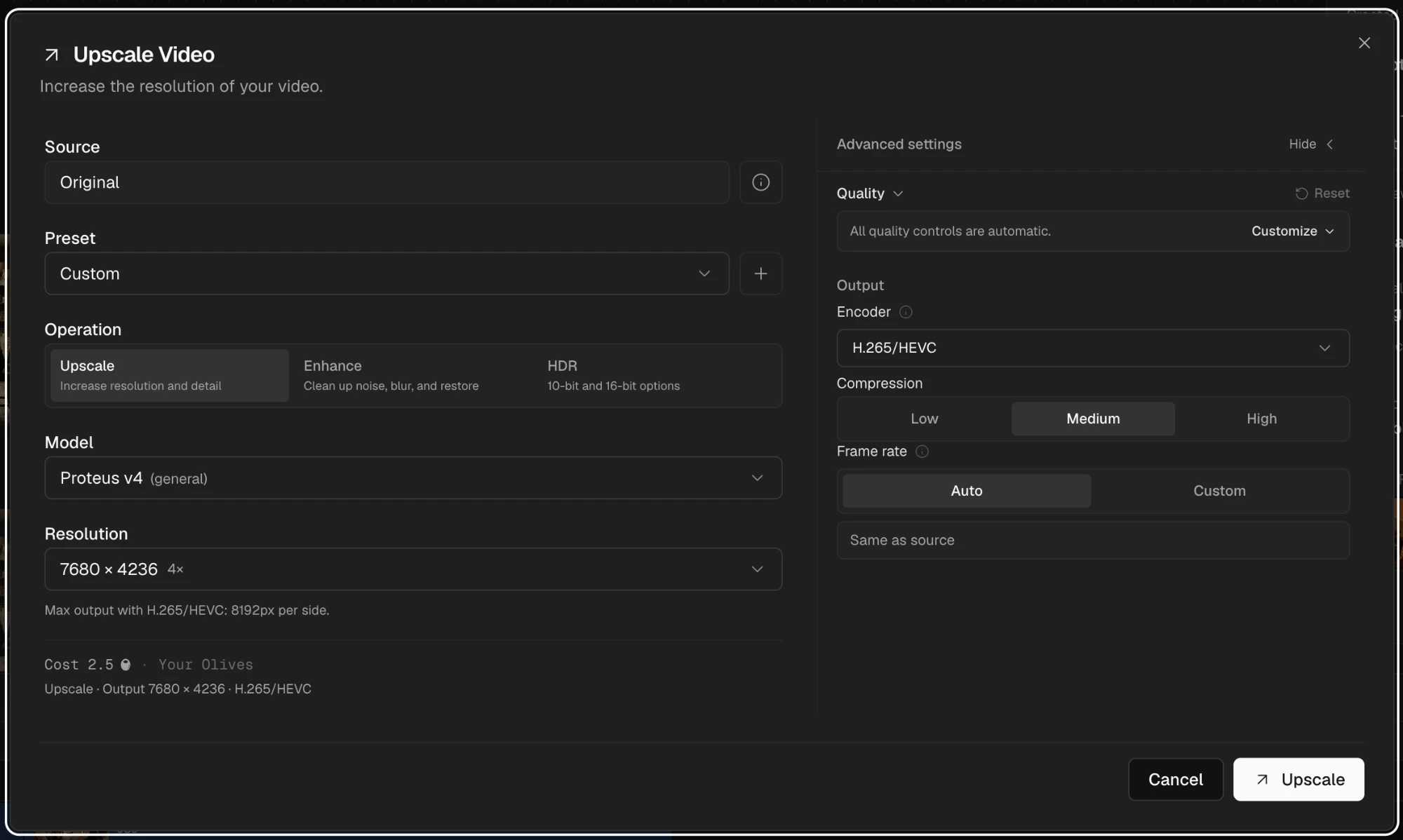
Upscaling
Prepare a finished image or shot for a larger, cleaner, or HDR output.
Use Upscale & Enhance near the end of the workflow, after you have chosen the take and settled its framing. It can increase resolution, repair softness or noise, and create an HDR output for both images and video.
Select the image or shot, then choose Upscale & Enhance from the context menu or inspector. You can also press U.
Choose the source
Source selects the version you want to process. Start with the original unless an earlier enhancement already contains a change you need. The info button shows its dimensions, file type, creation date, and asset ID.
Choose the operation
- Upscale increases the output resolution and can recover detail.
- Enhance reduces problems such as noise, blur, or compression without requiring a larger output.
- HDR creates a 10-bit or 16-bit high-dynamic-range file.
Choose the model and quality
The model determines the available operations and controls. General models suit most material; correction models target specific problems; the Starlight family favors higher quality. Images have separate fast and generative choices.
Leave Quality on automatic for a first pass. If the result looks over-sharpened or too smooth, switch to manual controls and adjust detail, noise, blur, grain, or compression deliberately. Compare against the source at the same viewing size.
Set the output
- Resolution sets the target size, from HD through the maximum supported by the selected model and codec. Martini shows the scale factor.
- Encoder sets the delivery format, including H.265, H.264, AV1, HDR, and ProRes options.
- Compression trades file size against retained detail. Lower compression creates a larger, cleaner file.
- Frame rate defaults to the source rate. Set a custom rate only when the delivery specification requires it.
If you expect to reuse the same combination, select the plus beside Preset and give it a clear name. Presets include the model, resolution, quality, encoder, and related settings, and are shared with your team.
Review the olive estimate before starting. Video cost depends on output duration; image cost depends on megapixels; the model and output size also affect the total.
The finished result appears as a new version in the same stack. Toggle between it and the source to check whether the added detail is real and whether faces, text, grain, and edges still look natural.