
Tablet controls
Navigate and arrange the canvas with touch-friendly controls.
Tablet mode keeps the canvas visible while moving its main actions into larger touch targets. Martini enables it automatically on supported tablets, and you can switch between the touch and desktop layouts at any time.
Use tablet mode to review, organize, and place work away from a keyboard. A few precision workflows still require the desktop layout; those are listed at the end of this page.
Turn on tablet mode
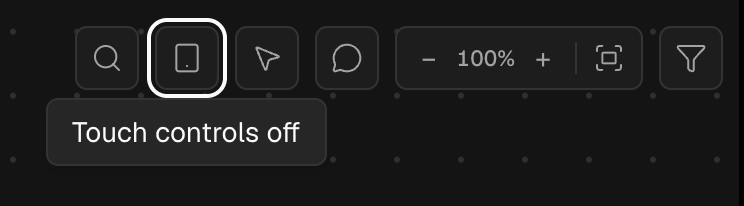
- From the desktop layout, tap the outlined tablet button in the canvas toolbar. The Touch controls off tooltip confirms that tablet mode is available but disabled.
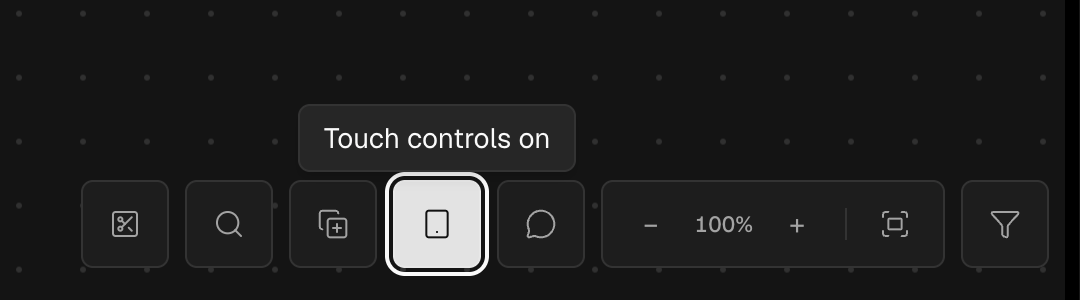
- In tablet mode, the tablet button stays highlighted and the tooltip reads Touch controls on. Tap it again to return to desktop controls.
Tablet layout
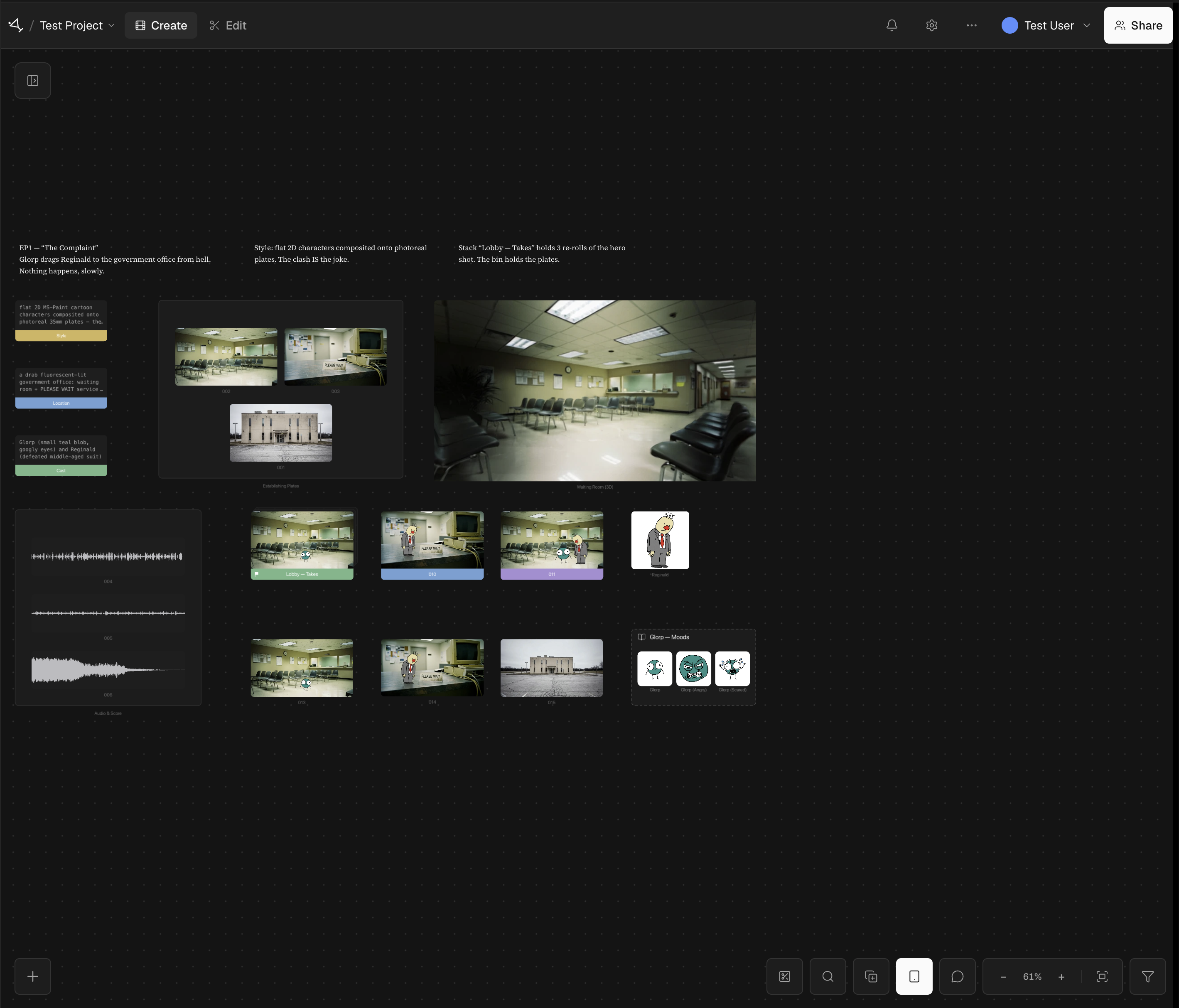
- The top bar keeps the project menu, Create and Edit modes, notifications, settings, project controls, account menu, and Share button available.
- The tablet toolbar sits in the lower-right corner. Add stays in the lower-left corner, and Show assets stays in the upper-left corner.
Use the tablet toolbar
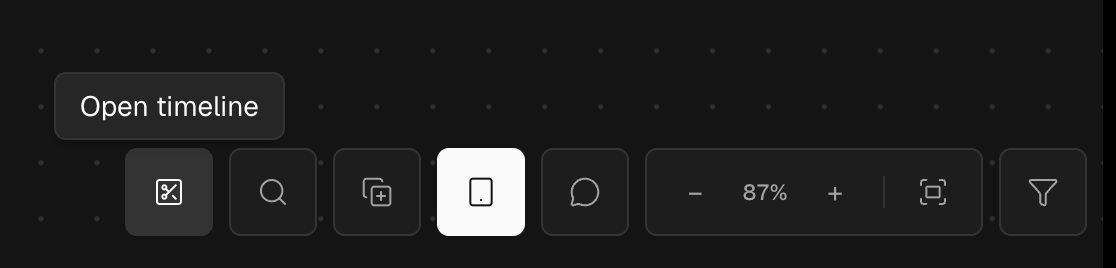
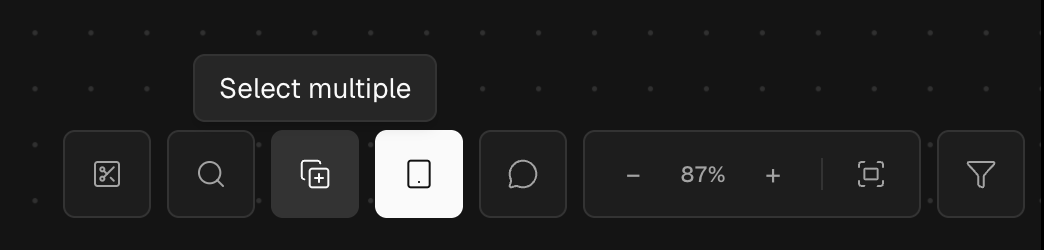
- Scissors: open or close the timeline.
- Search: find commands and tools.
- Overlapping squares: enter or exit multi-select mode.
- Tablet: turn tablet controls off or back on.
- Comment bubble: add or review comments.
- Zoom controls: zoom out, set an exact level, zoom in, or fit the project in view.
- Filter: show only matching canvas work.
Open the timeline
- Tap the scissors button to open or close the timeline without leaving tablet mode.
Select multiple
- Tap the overlapping-squares button, then tap objects to add or remove them from the selection.
- Hold and drag any selected object to move the full selection together.
Add to the canvas
- Tap the plus button in the lower-left corner to open the object toolbar.
- Choose Image, Video, Audio, Set, Text, Bin, or Variable, then tap the canvas to place it.

Show and hide assets
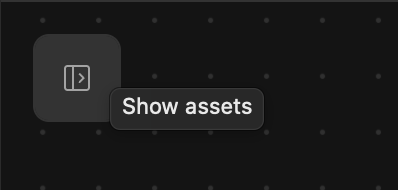
- Tap Show assets in the upper-left corner to open the asset panel. Tap the same control again to hide it.
Return to desktop controls
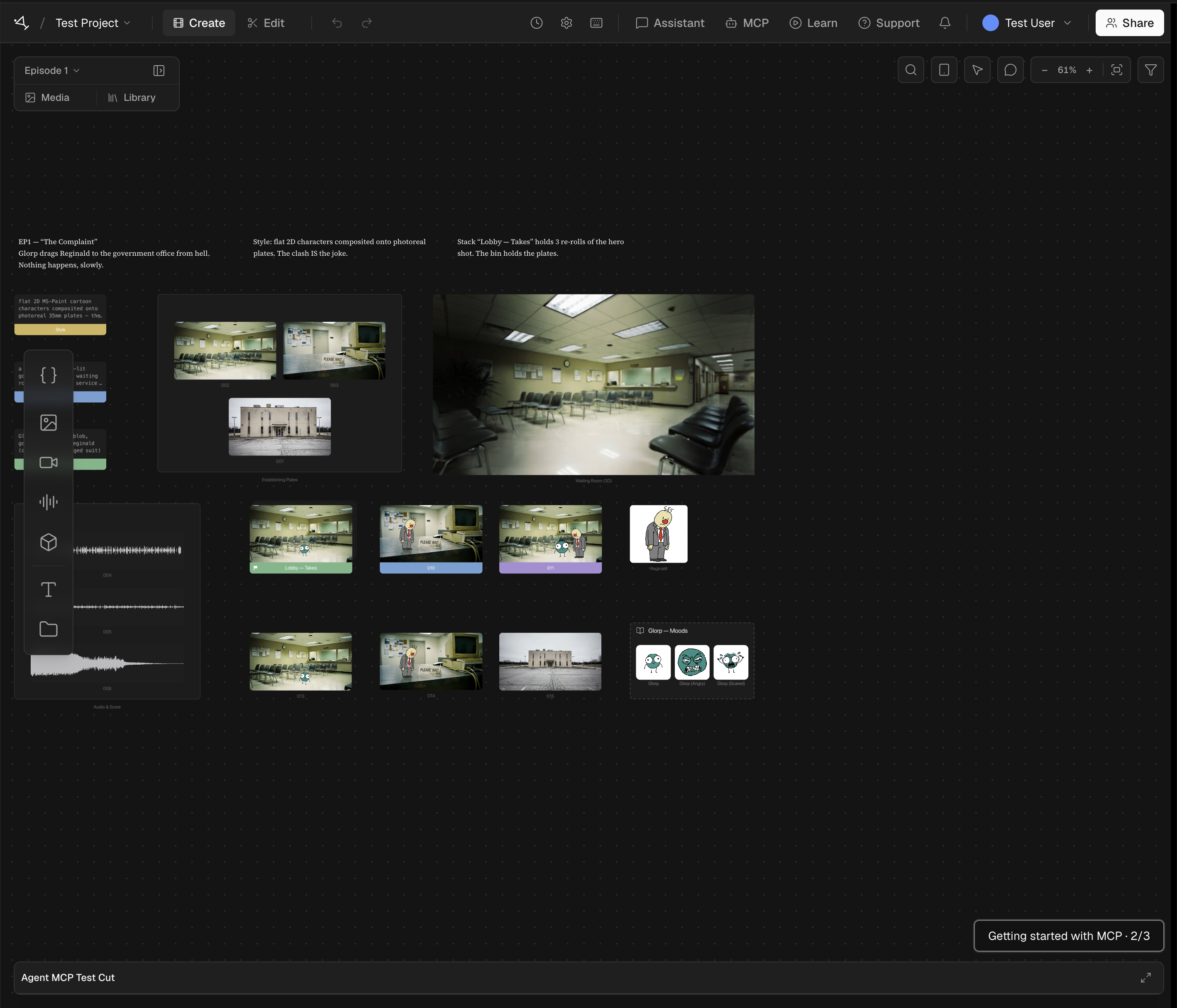
- Tap the highlighted tablet button to turn touch controls off. The canvas returns to the desktop layout with its compact toolbar in the upper-right corner.
Select and move work
- Tap an object to select it. Tap empty canvas to clear the selection.
- Hold an object until the four-arrow move indicator appears, then drag. Hold and drag any selected object to move the full selection.
- Drag empty canvas with one finger to pan. Pinch with two fingers to zoom or pan while zooming.
Desktop-only workflows
- Advanced timeline editing, dragging work from the canvas to the timeline, marquee selection, and keyboard shortcuts still require the desktop layout.
- Martini does not currently provide specialized Apple Pencil controls.