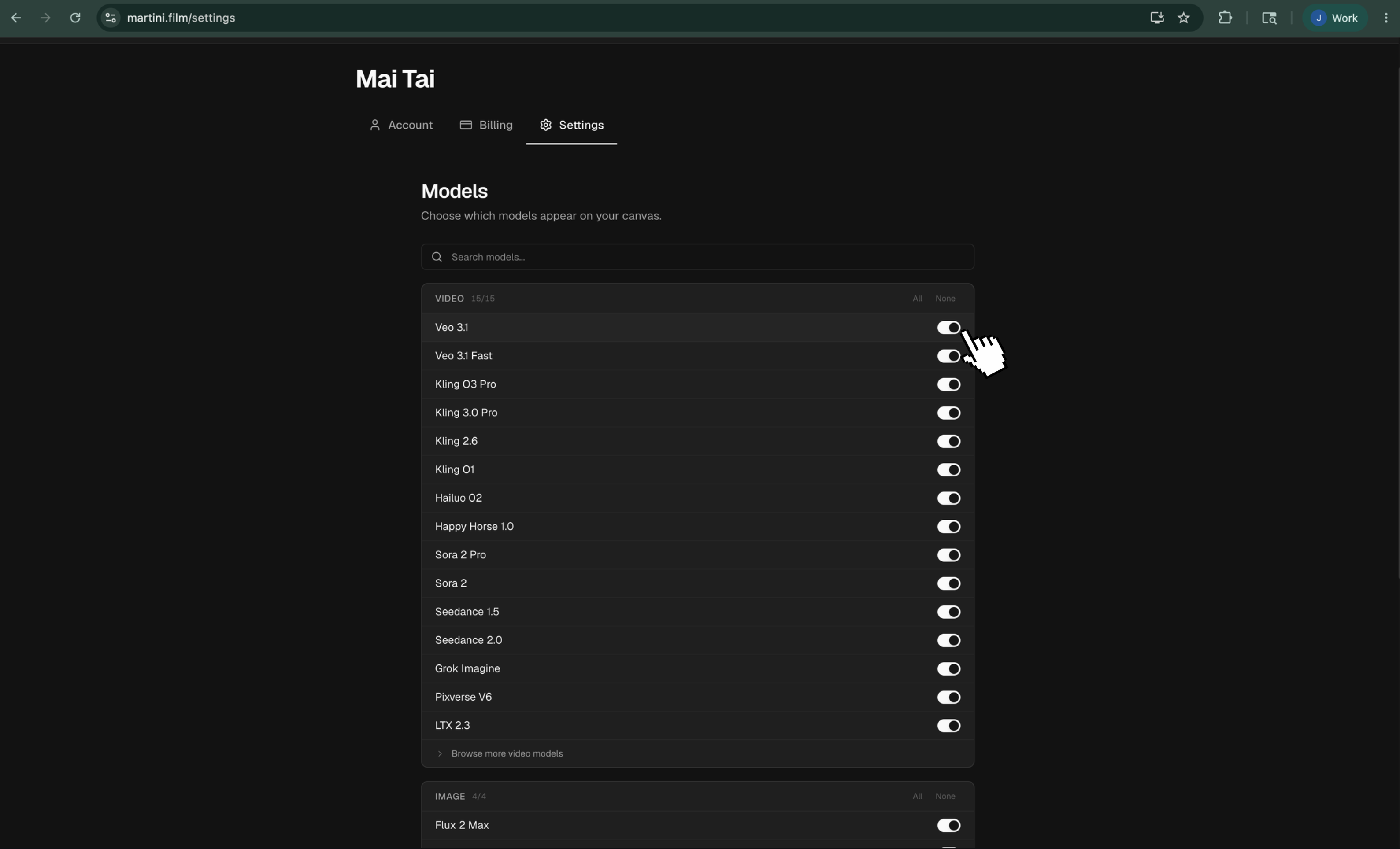
Model preferences
Keep the model picker focused on the tools you use.
Personal model preferences control which available models appear on your canvas. Hiding a model shortens the picker without changing team access or deleting any previous generations.
Choose visible models
- Open Settings > Models.
- Toggle a model to show or hide it, or use the group controls to change a whole capability at once.
- Return to a project and open the model picker to review the shorter list.
These choices follow your account across personal projects and team projects labeled Pay per user. In a project labeled Team billing, the team's Model Access settings take precedence: you cannot show a model that the team has disabled, but you can hide more models for yourself.
Use Browse models to see additional catalog options. If a needed model is not available, select Request Model or submit a custom request. A request does not make the model available immediately.